Manage and Share Stacks
Find and maintain your stack: rename an existing plan, distinguish private sharing from public marketplace visibility and write a clear description. Reopen saved changes to check the result, keeping personal learning progress separate from shared study material.
Step by step
- Find the existing stack in My Study Plans and reopen its study workspace.
- Rename it through Edit, save and verify the title after reopening the plan.
- Inspect the private-sharing form for a link or chosen recipients and read its access guidance.
- Prepare a suitable title and specific description for public sharing, using only education details that genuinely apply.
- Publish only reviewed material you are allowed to share and check the actual available version.
- Refine the shared version's description and verify the saved result; personal learning progress is not shared with it.
Transcript
- 0:00Your study material evolves as you add examples and refine your priorities.
- 0:04A clear stack name helps you find the right version when you return.
- 0:08My Study Plans separates active, finished, purchased and shared plans.
- 0:12We reopen our seminar stack,
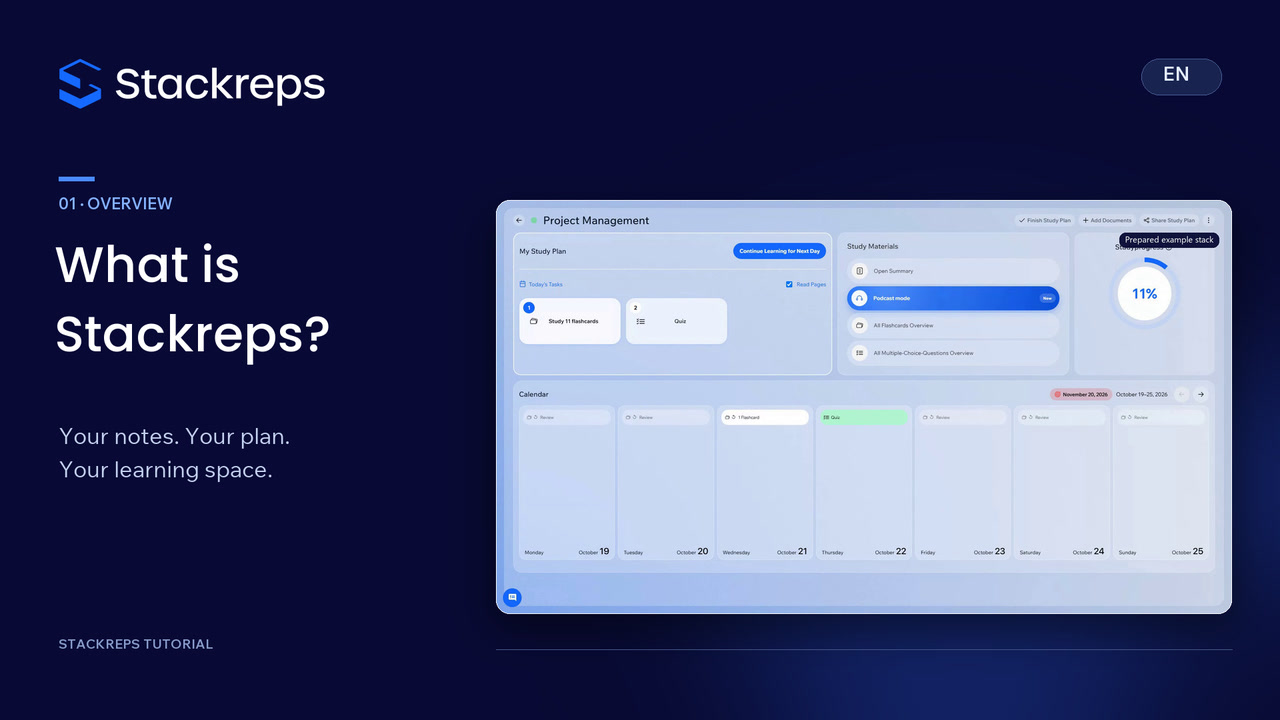
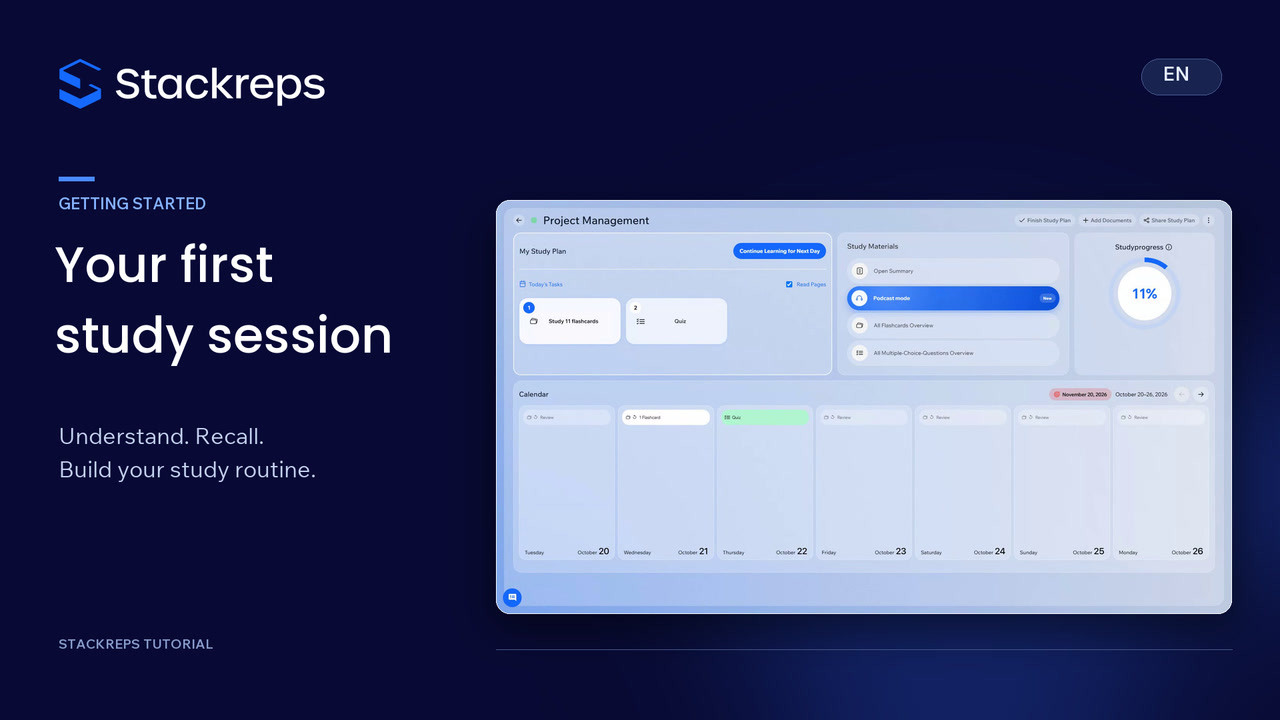
- 0:14where study materials, daily tasks and the calendar stay connected.
- 0:19In Edit, we give the existing plan a more useful name: Project Management, Seminar.
- 0:24We save it, then reopen the plan independently.
- 0:27The new title persists without having to generate the learning content again.
- 0:32Private sharing lets you prepare a link or choose recipients.
- 0:35Someone following the link signs in and can acquire the plan.
- 0:40Private describes visibility; it does not automatically promise free full access.
- 0:46We send no invitation here.
- 0:48Public plans can be discovered in the marketplace.
- 0:50A specific description helps others understand the contents.
- 0:54University and study programme are optional;
- 0:57only choose details that really fit.
- 0:59We clearly label this fictional example as a test recording.
- 1:03Publishing creates a shared version.
- 1:05We skip the processing time,
- 1:07then check the genuinely available result in the Shared tab.
- 1:11Edit lets us refine its description and save.
- 1:15After reopening it, the added podcast case appears in the description.
- 1:19These details describe the shared version;
- 1:22your personal learning progress is not shared with it.
- 1:26Keep your material easy to find,
- 1:28improve it as you learn, and choose deliberately who can benefit from it.