Edit and Customize Your Podcast
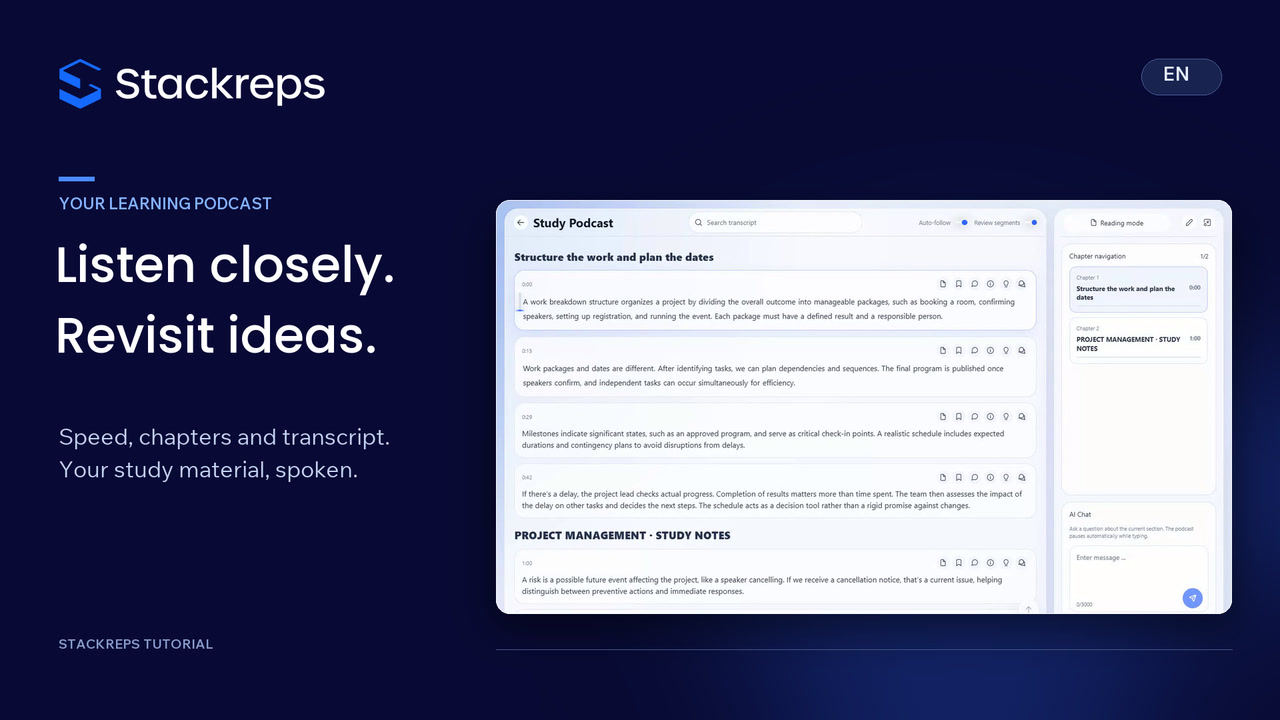
Refine a generated learning podcast: clarify an explanation, compare it with the original and insert your own seminar example as a new segment. Save the changes, keep a personal question in a separate note and check the updated audio against the actual added content.
Step by step
- Choose a specific passage whose explanation you want to refine.
- Open the transcript editor, revise the existing text and check the original comparison.
- Use the plus control to insert your own content segment after the explanation and write a relevant example.
- Use the available image, table and formula tools when useful, keeping spoken content understandable on its own.
- Save the transcript changes and check the result after the update finishes and the podcast is reopened.
- Save personal questions separately as segment notes, then listen to the updated audio for your added wording.
Transcript
- 0:00A learning podcast can be a starting point.
- 0:02For our university seminar, we want a clearer distinction between a
- 0:06possible risk and an issue that has already occurred, plus a concrete example.
- 0:11Open the editor and select the relevant passage.
- 0:14We sharpen the explanation:
- 0:16a possible cancellation is a risk; a confirmed cancellation requires action.
- 0:21The comparison view shows exactly how the wording differs from the original.
- 0:25Use the plus control to insert your own content segment immediately afterwards.
- 0:30Our seminar example describes arranging a substitute in advance,
- 0:34then acting when a speaker actually cancels.
- 0:37This connects the definition to a practical decision.
- 0:40The new segment belongs in the transcript sequence.
- 0:44The editor also offers images, tables and formulas.
- 0:47Add them where they help,
- 0:49while keeping the spoken explanation understandable on its own.
- 0:53Saving submits both text changes and starts the update.
- 0:57We skip the processing time and reopen the podcast to check the result.
- 1:02Once the new audio is ready,
- 1:04we can compare the wording with what is actually spoken.
- 1:07A note attached to the passage keeps a personal question in context.
- 1:12We ask who will arrange the substitute.
- 1:15This saves separately and does not change the spoken podcast text.
- 1:19Now listen to our added example:
- 1:21In our university seminar,
- 1:23the team arranges a substitute in case the speaker cancels.
- 1:27Once a cancellation is confirmed, it activates that plan and informs attendees.
- 1:32Review the content, add a useful example, and check the updated audio.
- 1:36Your podcast now reflects the explanation you chose.