Create and Customize a Stack
Build a stack around your study goal: select relevant pages, add a useful extract, and compare an exam target, long-term learning and study modes. Check your choices and the displayed cost before creating the stack.
Step by step
- Upload your notes and check the file and readable pages in the preview.
- Choose a deliberate page range to focus the scope.
- Add relevant documents and remove unwanted files before creation.
- Give the stack a short, recognisable name.
- Compare Exam and Long-term Memory and choose your learning goal.
- For an exam, set a target date; the study plan allocation is calculated automatically.
- Choose Speed Mode or Detail Mode for the depth of preparation you want.
- Review the overview and the actual displayed cost, then create the stack.
Transcript
- 0:00This stack brings together the topics we want to explore:
- 0:03planning, risks and project closure.
- 0:06Those choices begin when you create it.
- 0:09Start with the project management notes.
- 0:11Check the preview to make sure you have selected the right file
- 0:15and can read all the pages you need.
- 0:17For this session, select pages two to three.
- 0:20We already know the basics on page one.
- 0:23A deliberate page range keeps the scope focused on what we want to study.
- 0:27Add the project closure page as a separate extract.
- 0:30You can include more documents and remove them again before creating the stack.
- 0:35Here, we keep this relevant addition alongside our selected notes.
- 0:40The name Project Management: Focus makes our purpose easy to recognise later.
- 0:46Choose a short name that will still make sense among your other study plans.
- 0:51For an exam, choose a target date.
- 0:54If you want to keep studying a subject without a fixed exam day,
- 0:57select Long-term Memory instead.
- 1:00For our example, we return to the exam option.
- 1:03Our target is the twentieth of November.
- 1:06You have chosen the scope;
- 1:08Stackreps automatically works out how to divide the material for the study plan.
- 1:13Speed Mode prepares a compact view of the key content.
- 1:17For greater depth, choose Detail Mode.
- 1:20Match the choice to your learning goal,
- 1:22then check the generated material against your notes.
- 1:26Finally, check the name, three selected pages, learning goal and mode.
- 1:30Review the displayed cost before starting.
- 1:33Then create the stack.
- 1:35The recording skips the processing wait.
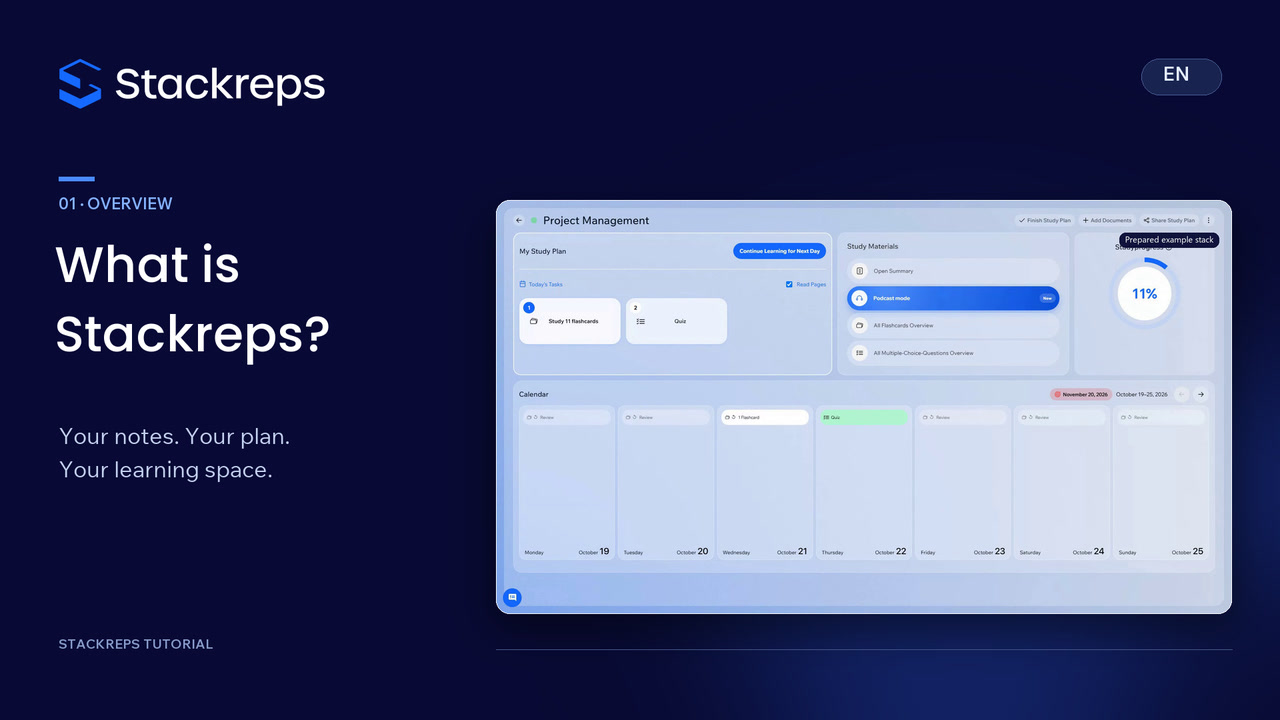
- 1:39The finished study plan reflects the focus we chose.
- 1:42Your selected notes are now the starting point for a useful study routine.
- 1:47The next episode shows how to work with your daily tasks.