Read and Edit Summaries
Turn a generated summary into your own study material. Check a term in the original document, relate it to your example and organise the practical relationships in a table. Review the preview and original comparison, then reopen the saved summary to check your changes.
Step by step
- Open the summary in your existing stack and find the relevant section.
- Switch to the original document to check the term in context.
- Open the editor and adapt the definition to your example without changing its meaning.
- Add a subheading at an appropriate heading level.
- Insert a table connecting each group with a need and a practical action.
- Check Preview and the original comparison, save, then reopen the summary to verify the result.
Transcript
- 0:00A summary gives you a starting point.
- 0:02Your own examples can turn that overview into something more useful for study.
- 0:07We're working with the seminar from our project management stack.
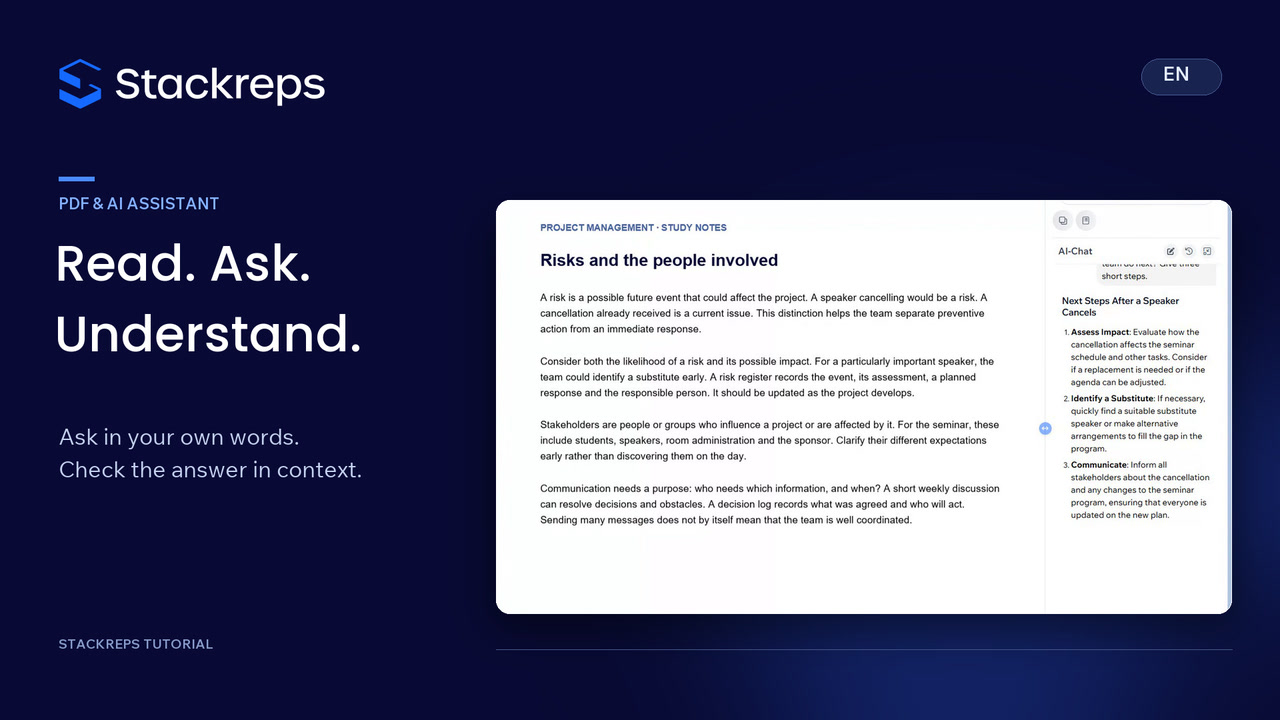
- 0:10The source section explains who is involved.
- 0:13Switching to the original lets us check that context before changing the summary.
- 0:19Return to this page whenever you need to check a term against your notes.
- 0:23Back in the summary, open the editor.
- 0:25We'll shorten the stakeholder definition and relate it directly to our seminar.
- 0:30We keep the meaning and replace the longer paragraph with one clear sentence.
- 0:34The idea stays accurate, while its connection to our example becomes clearer.
- 0:39Give the new material its own subheading.
- 0:42Choose a heading level that fits the rest of the page,
- 0:45so your additions remain easy to find when you review.
- 0:48Now add a table linking each group to a need and an action.
- 0:52Students need a clear timetable, so we announce the date early.
- 0:57We agree the programme with the speakers
- 0:59and confirm the room booking with room administration.
- 1:03Each row answers the same question:
- 1:06what does this group need from the project team?
- 1:09The table makes those practical relationships easy to compare.
- 1:13Preview shows how the page will look.
- 1:16The original comparison also lets us check which parts we changed.
- 1:20Review the wording, the relationships and the layout before saving.
- 1:25Save, then reopen the summary.
- 1:29The revised definition, subheading and table are still there.
- 1:33You now have study material that connects the generated
- 1:36overview with your own understanding.